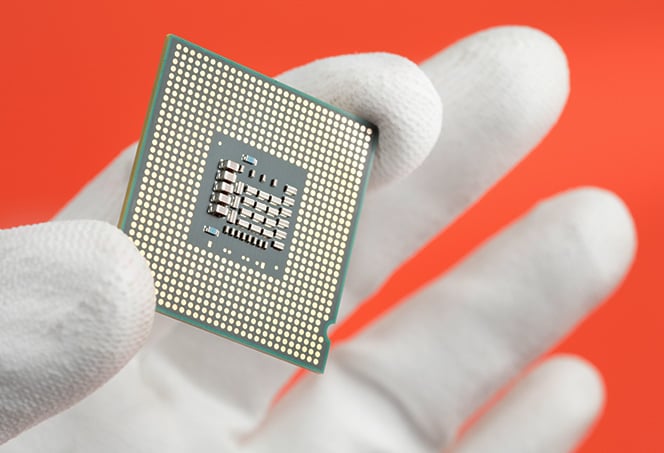
What is a CPU stress test?
Stress-testing a CPU means running it at maximum capacity for a sustained period of time to evaluate its stability. Stress testing software uses a variety of techniques to push your CPU to 100% capacity for an hour or more, then analyzes its performance. CPU stress tests are also known as CPU load tests.
We’ll show you how to use the most popular PC stress testing tools, then explain how stress testing helps maintain your computer’s health.
How do I stress test my PC?
Follow this procedure to stress test your PC:
-
Prepare your computer for a stress test by closing all nonessential apps and checking your CPU temperature.
-
Choose and download a stress testing tool.
-
Run the stress test while monitoring your CPU temps.
The results of your computer stress test will give you an idea of your PC’s overall health and stability. It’s important to perform a CPU stress test before overclocking your CPU — otherwise, you might push things too far.
How to prepare for a computer stress test?
To make sure your CPU stress test runs properly, prepare your PC by shutting down any programs that won’t be used during the test. Then, monitor your CPU temperatures. Here’s how:
-
Close all nonessential applications. Background and foreground processes can interfere with the CPU stress test. Closing these programs and processes is a great way to speed up your PC.
-
Download and install AVG TuneUp to identify any programs wasting RAM and CPU resources. AVG TuneUp's Sleep Mode technology puts those programs to sleep and halts all background activity, ensuring that your PC devotes all its resources to the CPU stress test.
-
Open AVG TuneUp, go to Speed Up, and click Background & startup programs. Sleep Mode will detect unnecessary programs and temporarily deactivate them to ensure your test delivers the most accurate results possible.
%20-%20refresh/img_01.png?width=1097&name=img_01.png)
-
Monitor your CPU temperatures: Don’t let your CPU temperature exceed 90°C for prolonged periods.
What are the best tools for a CPU load test?
Our recommended CPU stress testing tools are Prime95, AIDA64, HeavyLoad, and Intel BurnTest. These all work similarly to one another, with minor differences. Here, we’ll show you how to use some of the best tools to stress test your PC.
Prime95
Prime95 is one of the most popular CPU stress testing tools out there. It uses the Mersenne prime technique, which makes nonstop use of your processor’s FPU (floating point unit) and integer capabilities while also testing its various caches (L1, L2, L3).
Here’s how to use Prime95 to perform a PC stress test:
-
Download Prime95. Choose the Windows 64-bit option, which is the basis for all newly built and bought PCs. Only PCs made in the 2000s, or extremely low-end machines from the early 2010s, run on 32-bit software.
%20-%20refresh/img_02.png?width=700&name=img_02.png)
-
Launch the tool and select Just stress testing. Choose the Blend option, which stress tests all cores and caches. Then click OK.
%20-%20refresh/img_03.png?width=800&name=img_03.png)
-
At this point, the test will begin. Your processor and all its cores will immediately reach 100% capacity, and your computer’s fans will kick into action.
%20-%20refresh/img_04.png?width=800&name=img_04.png)
-
As with other stress testing tools, you should let this one run for about an hour (or if you really want to know the maximum limits: a day).
AIDA64
With 25 years in the industry, AIDA is a massive suite of tools to display and diagnose your entire machine. It’s available as a premium product, but you can also download a free trial for a quick PC stress test.
AIDA64’s system stability test simulates a realistic workload for your computer. Here’s how to launch it and perform a CPU load test:
-
Download the AIDA64 trial. Extract the files and double-click on the AIDA64.exe file.
%20-%20refresh/img_05.png?width=800&name=img_05.png)
-
If you want — and we recommend that you do — you can go through the individual categories and explore the inner workings of your PC. Try selecting Memory from the Motherboard dropdown menu to learn more about your machine’s RAM.
%20-%20refresh/img_06.png?width=800&name=img_06.png)
-
In the Benchmark category, you can test your system and compare it to other PCs.
-
To launch the computer stress test, click on Tools and select System Stability Test. When you’re ready, click Start.
%20-%20refresh/img_07.png?width=800&name=img_07.png) During this test, you can easily switch back to the main AIDA64 window and go to Computer and Sensor. Here, you can watch over the CPU temperature and see how fast your fans are rotating.
During this test, you can easily switch back to the main AIDA64 window and go to Computer and Sensor. Here, you can watch over the CPU temperature and see how fast your fans are rotating.
%20-%20refresh/img_08.png?width=800&name=img_08.png) As long as the temperature stays below 90°C, you should be fine. Let it run for a few hours and see if your PC remains stable.
As long as the temperature stays below 90°C, you should be fine. Let it run for a few hours and see if your PC remains stable.
HeavyLoad
Another good stress testing tool is HeavyLoad. It doesn’t just stress test the CPU, but it also lets you monitor your GPU temp as your computer is put through its paces.
%20-%20refresh/img_09.png?width=800&name=img_09.png)
Just launch the app, select CPU Usage, and hit the Play button at the top to begin the PC stress test.
Intel BurnTest
Intel Burn Test isn’t an official Intel tool, but it’s one of the easiest computer stress tests out there to use.
%20-%20refresh/img_10.png?width=700&name=img_10.png)
Open the app, click on Stress Level, and select Maximum. Hit the Start button to begin the CPU load test. Let it run for a while and see if your PC can handle the stress.
Why should I stress test a CPU?
You should stress test your CPU to evaluate the stability of its performance — a PC stress test runs your CPU at full speed and subjects it to high temperatures. Always stress test your CPU before overclocking it — if your CPU fails the stress test, it won’t handle an overclock.
%20-%20refresh/img_11.jpg?width=700&name=img_11.jpg) Don’t try this at home. There are better (and safer) ways to stress test your CPU than by putting it in a frying pan.
Don’t try this at home. There are better (and safer) ways to stress test your CPU than by putting it in a frying pan.
Common reasons to stress test your CPU
The best reasons to perform a computer stress test are:
-
You built a new computer. Congrats, you’ve just built your own PC. Your next step is to test whether the thermal paste and cooling systems all work hand-in-hand to handle stress. Hopefully you’ve chosen a CPU that’s powerful enough to handle the stress test.
%20-%20refresh/img_12.jpg?width=700&name=img_12.jpg)
Applying thermal paste to your CPU.
-
You bought a new PC or laptop. Just got a brand-new machine? Run it through some stress testing and see how it performs. This is important if you have a super-slim laptop with little to no cooling.
-
You have an old laptop or PC. If your computer is showing its age, perhaps by randomly shutting down, you’re likely wondering how you can revive your dying PC. A good first step is to run a stress test to see whether temperatures and high usage are an issue. Also try defragging your hard drive if it’s been a while.
-
You’re overclocking. If you’re an enthusiast or gamer who wants to squeeze every ounce of performance out of your computer, stress testing is an essential part of this process. Learn more about how to safely overclock your PC.
New and old computers alike can always benefit from regular maintenance and cleaning. AVG TuneUp automatically removes unneeded files and software, minimizes background activity to conserve CPU power and RAM, and keeps your PC running fast.
How long should I stress test a CPU?
You should stress test your CPU for at least one hour — that’s plenty of time for your CPU to reach its maximum temperature. If you need to make sure everything is stable and working properly, let the CPU load test run for 24 hours. But you’re unlikely to need such a prolonged test.
Are PC stress tests safe?
Yes, PC stress tests are generally safe. If your CPU hits its critical limits, your PC will shut down before any harm can be done. Only in very rare cases, and with much older CPUs, can you damage your hardware by stress testing your computer for too long.
In most cases, PC stress tests are fine. But beware that the excessive heat produced during the test will contribute to the gradual wear and tear of your PC. Always check your CPU temperature and avoid overheating. You can also check your RAM to ensure you have enough for your typical PC tasks.
How does PC stress testing work?
CPU stress testing tools simulate a full processing load to “stress” your CPU and force it to run at its max capacity and temperature. The goal of a PC stress test is to see how long it takes your CPU to become unstable while running at maximum load.
Prime95 — one of the most popular stress testing programs — uses the search for Mersenne prime numbers. This causes CPUs to run at 100% load across all cores and represents a maximum-usage scenario. After a few minutes, you’ll see your CPU hitting peak temperature.
%20-%20refresh/img_13.jpg?width=700&name=img_13.jpg) Stress testing your CPU will result in excess heat, but this isn’t the best way to do it.
Stress testing your CPU will result in excess heat, but this isn’t the best way to do it.
What if my PC fails the CPU stress test?
If your PC fails the CPU stress test, you’ve got a problem. It may be easily solvable, or it may be time for a new computer. Here are some reasons why your PC might fail a stress test:
-
Inadequate cooling: Your CPU fan might not be able to cool down the processor. Look into upgrading the fan or even using water-cooling if you’re not doing that already.
-
Dust bunnies: Your fans might be clogged with dust. Get an air duster or a vacuum and physically clean your machine. And try one of the best free computer cleaning apps to get rid of all the digital junk on your PC.
-
Aging hardware: Your PC might not be up to spec anymore, and its components could be showing signs of age. This happens often with PCs that have been overclocked and used for intensive tasks, such as gaming or video rendering, for at least five years.
You might want to upgrade, add more RAM, or even build your own PC for gaming, video editing, or whatever else you may need. Updating your computer’s hardware can boost its performance and speed up boot times considerably.
-
Outdated drivers or BIOS versions: Increased stress might also cause crashes on outdated drivers and BIOS releases. Check for new drivers or run a free scan with AVG Driver Updater. Then update the BIOS to the latest release.
PC stress testing: Check! What’s next?
Have you finished your computer stress test? Now it’s time to make sure your Windows operating system and software is running as smoothly as your CPU.
This is where AVG TuneUp comes in — it’ll keep your computer running like new with a full suite of specially designed performance-boosting tools. Try AVG TuneUp today for free and enjoy a smoother and faster computer.